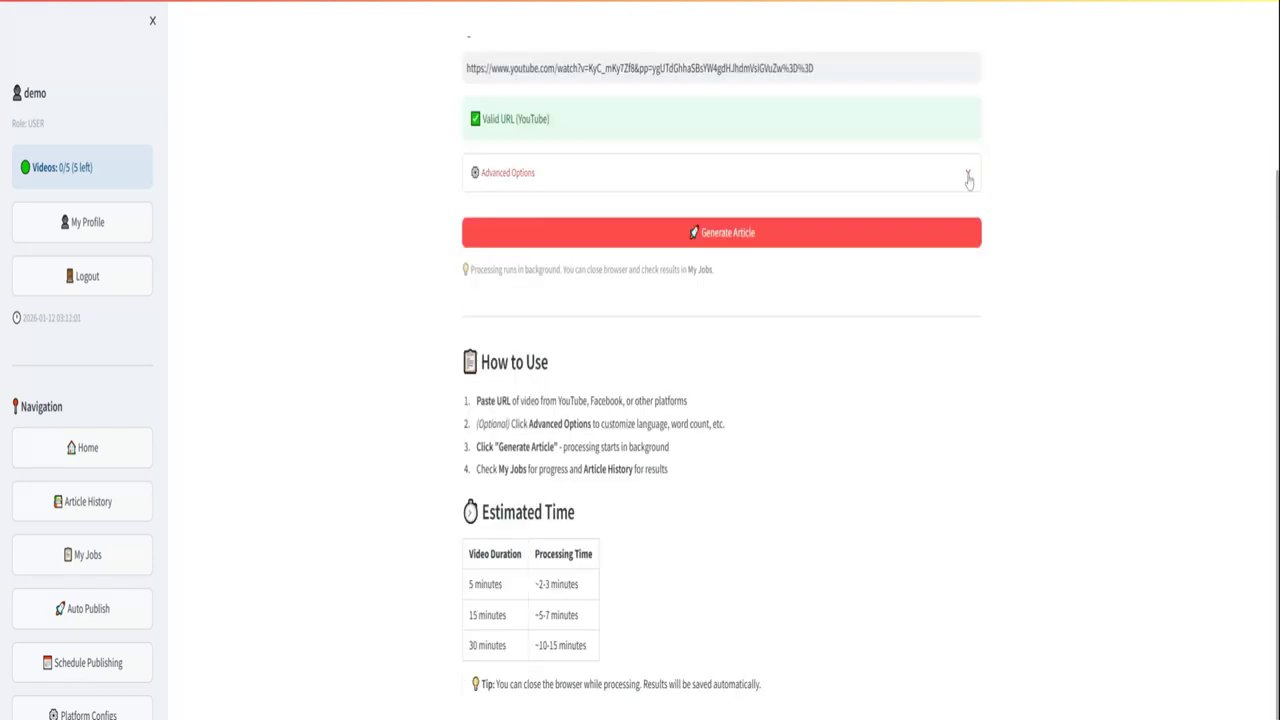
In today’s digital age, content creators and businesses are constantly looking for ways to repurpose their media across platforms. Facebook videos, with their engaging nature, can be a goldmine for website content. But manually downloading, transcribing, and formatting videos into blog posts can be time-consuming. That’s where automated tools like Video-to-Article come in handy.
This guide will walk you through how to convert Facebook videos into polished website posts using our user-friendly service. Whether you’re a blogger, marketer, or content strategist, this process will save you hours of work.
Why Convert Facebook Videos to Website Posts?
Before diving into the steps, let’s understand the benefits:
- SEO Boost: Video transcripts provide searchable text content that improves your website’s visibility on search engines.
- Accessibility: Text versions make your content accessible to a wider audience, including those with hearing impairments.
- Repurposing: Turn short-form video content into long-form articles that drive more traffic and engagement.
- Time Savings: Automated transcription and article generation eliminate manual labor.
Step 1: Prepare Your Facebook Video URL
First, you need the URL of the Facebook video you want to convert. Make sure the video is public or accessible to the tool. Copy the video’s URL from your browser’s address bar.
Tip: If the video is private, ensure you have the necessary permissions or make it public temporarily.
Step 2: Access the Video-to-Article Service
Navigate to videotopost.app in your web browser. If you don’t have an account, sign up for free. Our service offers a generous free tier to get you started.
Step 3: Input the Video URL
Once logged in, look for the input field labeled “Facebook Video URL” or similar. Paste the URL you copied in Step 1.
Pro Tip: You can process multiple videos at once by using our batch processing feature, available in premium plans.
Step 4: Configure Your Article Settings
Customize the output to match your website’s style:
- Language: Choose the transcription language (English, Spanish, French, etc.).
- Article Length: Select short, medium, or long article formats.
- Tone: Opt for professional, casual, or engaging tones.
- Include Images: Decide whether to extract frames from the video as article images.
Our AI-powered article generator will use these settings to create a coherent, readable post.
Step 5: Start the Conversion Process
Click the “Generate Article” or “Convert” button. The service will:
- Download the video from Facebook.
- Extract audio and transcribe it using advanced speech recognition.
- Generate a structured article with headings, paragraphs, and key points.
- Optionally, pull in relevant metadata like video title and description.
Processing time depends on video length, but most videos are ready in under 10 minutes.
Step 6: Review and Edit the Generated Article
Once processing is complete, review the generated article. Our AI does a great job, but you can make tweaks for accuracy or style. Edit directly in the web interface or export to your favorite CMS.
Common Edits:
- Correct any transcription errors.
- Add your branding or call-to-actions.
- Insert additional links or media.
Step 7: Publish to Your Website
Export the article in your preferred format (HTML, Markdown, or plain text) and publish it on your website. Popular platforms like WordPress, Medium, or static site generators support easy imports.
Integration Tip: Use our API for seamless integration with your existing workflow.
Best Practices for Optimal Results
- Video Quality: Higher quality videos yield better transcriptions.
- Clear Audio: Videos with clear speech and minimal background noise work best.
- Privacy Compliance: Always respect copyright and privacy laws when repurposing content.
- Test First: Start with a short video to familiarize yourself with the process.
Troubleshooting Common Issues
- Video Not Accessible: Ensure the URL is correct and the video is public.
- Transcription Errors: For niche topics or accents, manual review is recommended.
- Slow Processing: Upgrade to a premium plan for faster queues.
Conclusion
Converting Facebook videos to website posts has never been easier with Video-to-Article. By following these steps, you can transform your social media content into valuable blog posts that enhance your online presence. Start today and see how this tool revolutionizes your content strategy!
If you have questions or need advanced features, check out our documentation or contact support. Happy blogging!