In today’s fast-paced digital world, content creators are constantly seeking ways to streamline their workflow and maintain a consistent publishing schedule. The process of converting video content into blog articles and manually posting them can be time-consuming. Enter automation. This guide walks you through the complete setup process for using VideotoBlog.app to automatically convert your videos into blog posts and publish them directly to your WordPress site, turning hours of work into a seamless, scheduled process.
Understanding the VideotoBlog.app Platform
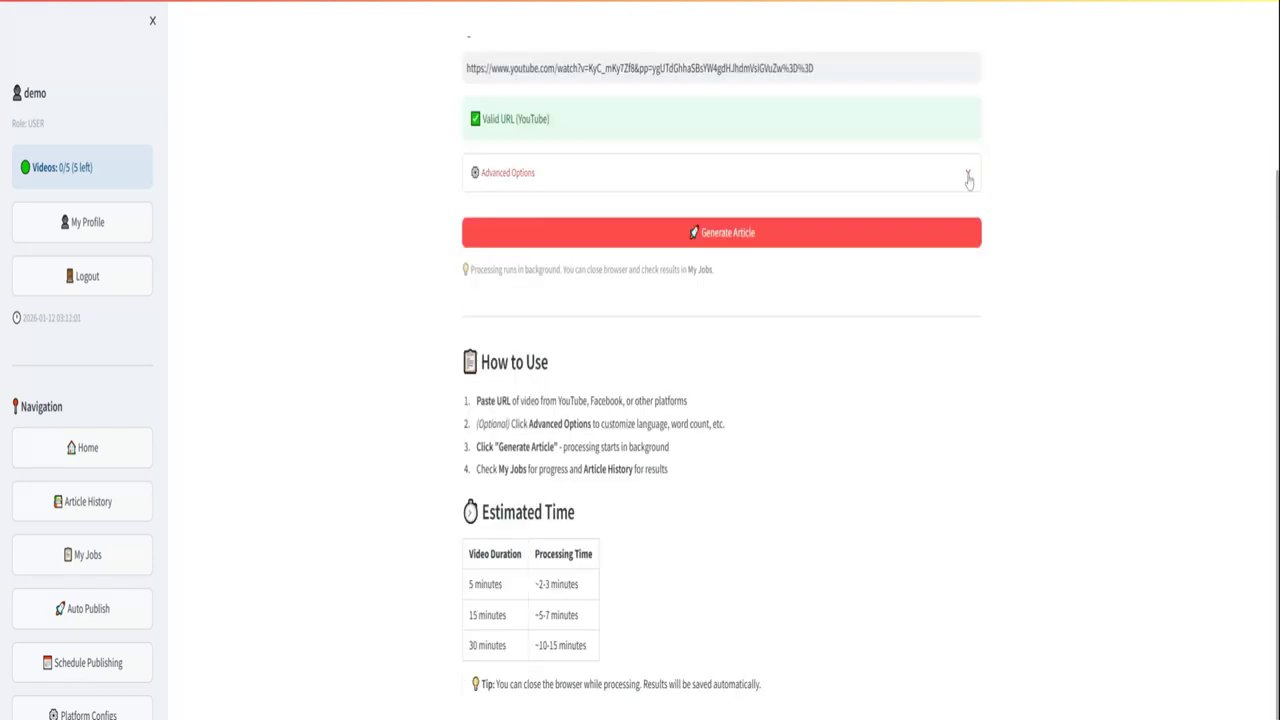
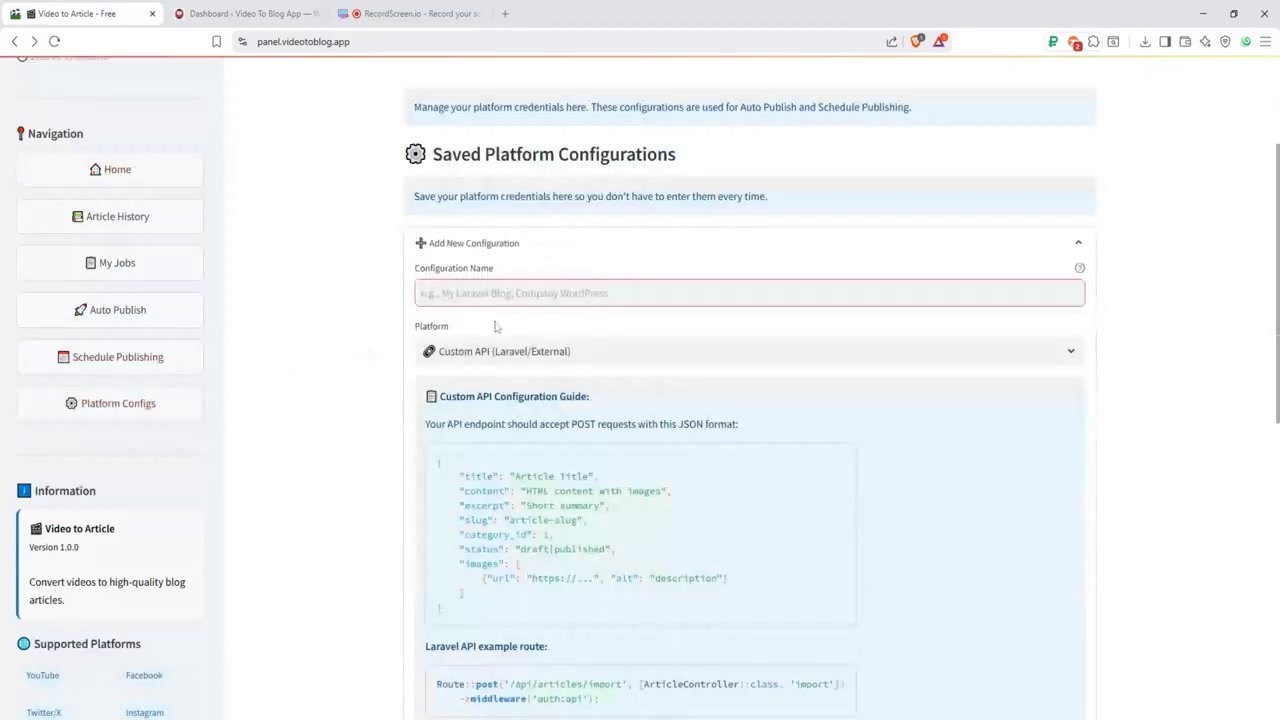
The journey begins within the VideotoBlog.app dashboard, a centralized hub designed for content automation. The interface is intuitively organized with a navigation menu on the left, providing quick access to all essential functions. Key sections include Home, Article History for reviewing past conversions, My Jobs for managing current tasks, and crucially, Auto Publish and Schedule Publishing features. These latter options are the core of the automation process, allowing you to set up rules and timelines for your content to go live without manual intervention.
The platform’s primary strength lies in its direct integration with content management systems, with WordPress being a flagship example. The setup is designed to be secure and efficient, leveraging modern authentication methods instead of relying on your primary WordPress login credentials. This approach not only enhances security but also simplifies the connection process between the two platforms.
Step 1: Configuring WordPress for Secure Integration
Before VideotoBlog.app can publish on your behalf, you need to establish a secure bridge between the two services. This is accomplished using WordPress’s built-in Application Passwords feature, a secure method for non-interactive systems to authenticate.
Here is the step-by-step process to generate your application password:
- Log into your WordPress admin dashboard.
- Navigate to Users > Your Profile.
- Scroll down to the section labeled Application Passwords.
- In the “New Application Password Name” field, enter a descriptive name like “Video to Article” or “VideotoBlog.”
- Click the Add New Application Password button.
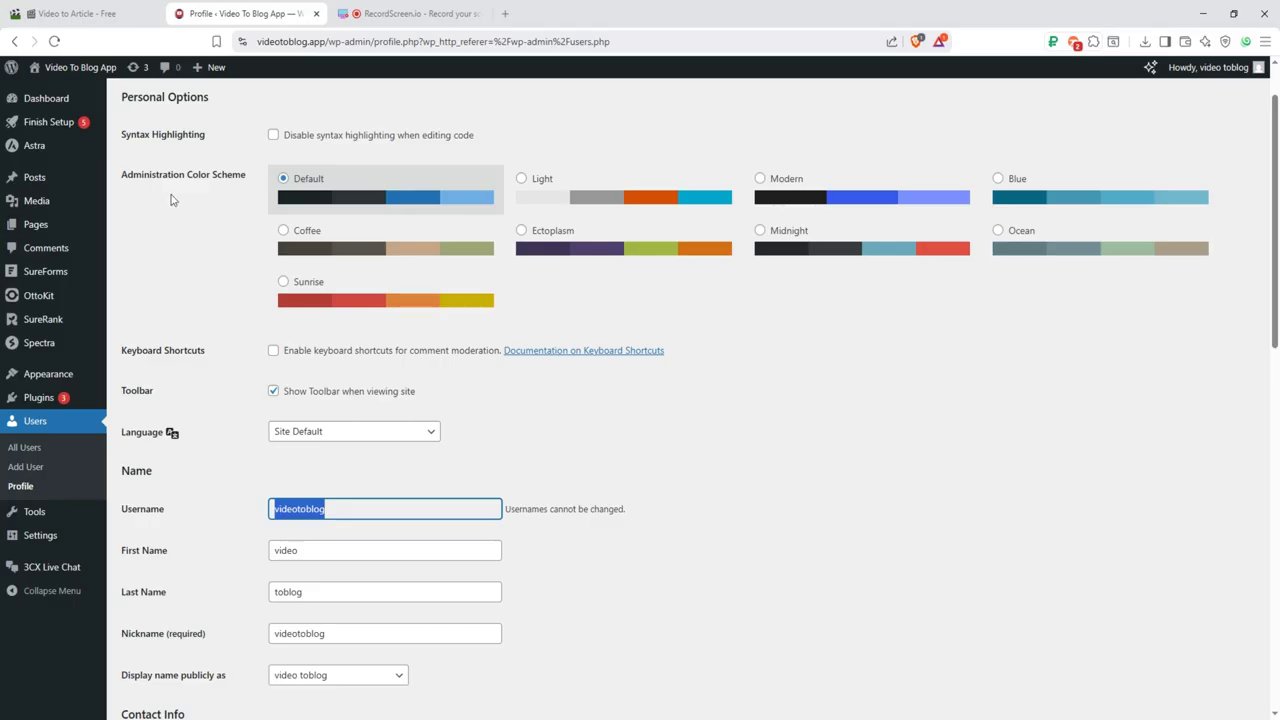
WordPress will then generate a unique, complex password. It is critical to copy this password immediately, as it will not be displayed again in full for security reasons. This string of characters is what you will provide to VideotoBlog.app, not your regular WordPress password. This method allows the app to authenticate via the WordPress REST API securely, without ever having access to your main account credentials or the need for you to store your password in a third-party service.
Step 2: Setting Up Post Details in VideotoBlog.app
With your secure WordPress connection key ready, the next step is to configure how your automated posts will behave. Back in the VideotoBlog.app dashboard, you’ll find the Post Settings section. This is where you define the default parameters for every article generated from your videos.
The first and most important setting is the default status. Typically, this is set to “draft.” This is a safe default, as it allows the article to be generated and placed into your WordPress site for you to review, add final touches, or schedule manually later. You may have options to set it to “publish” immediately, but starting with “draft” is recommended for quality control.
Next, you can pre-configure Categories & Tags. The platform allows you to enter category and tag slugs. A powerful feature here is that if a tag you specify does not already exist in your WordPress site, the system will automatically create it upon publishing. This ensures your content organization remains consistent without requiring pre-setup. For advanced users, there is also the option to include extra fields in JSON format, allowing for customization with specific WordPress themes or plugins that utilize custom meta data.
Step 3: Creating and Managing Your Publishing Schedule
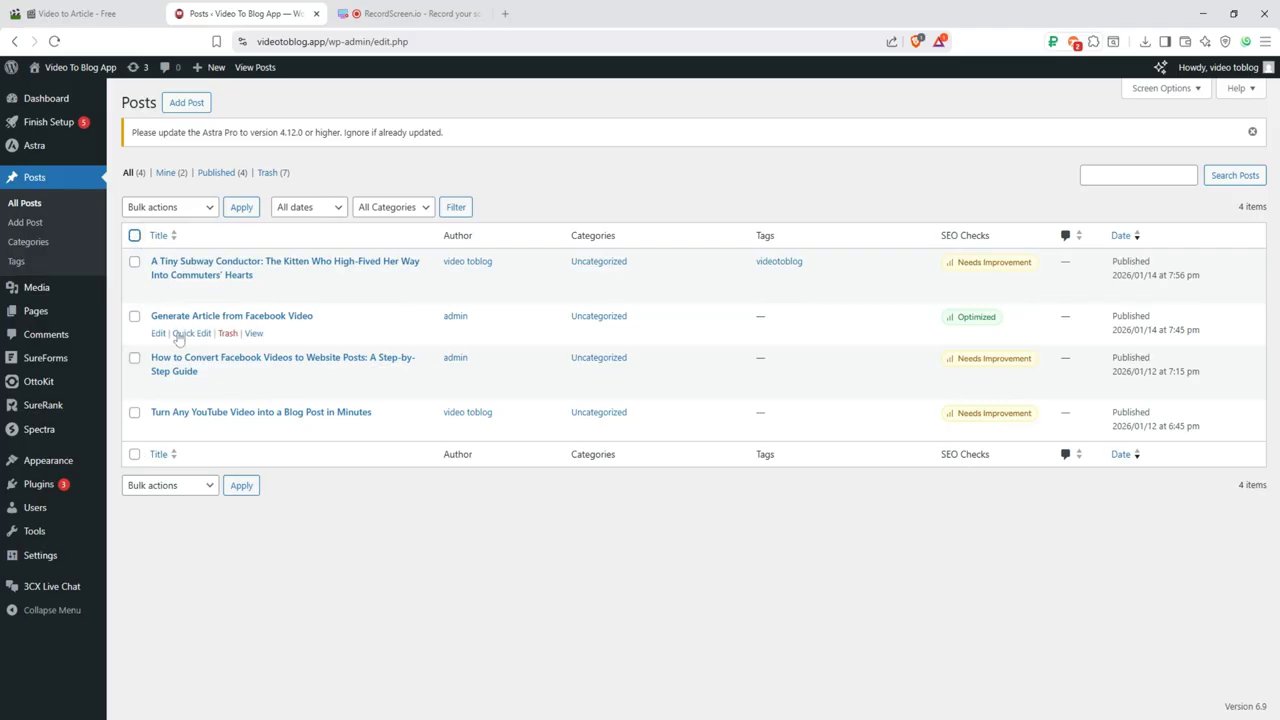
The true power of automation is realized in the Publishing Schedule Management section. This is where you move from one-off conversions to a fully automated content pipeline. Here, you can create schedules that tell the platform: “Take this article, and publish it to my WordPress site at this specific date and time.”
Creating a schedule involves a few straightforward selections:
– Select an Article: Choose from your library of video-converted articles.
– Set Schedule Time: Pick the exact date and time for publication.
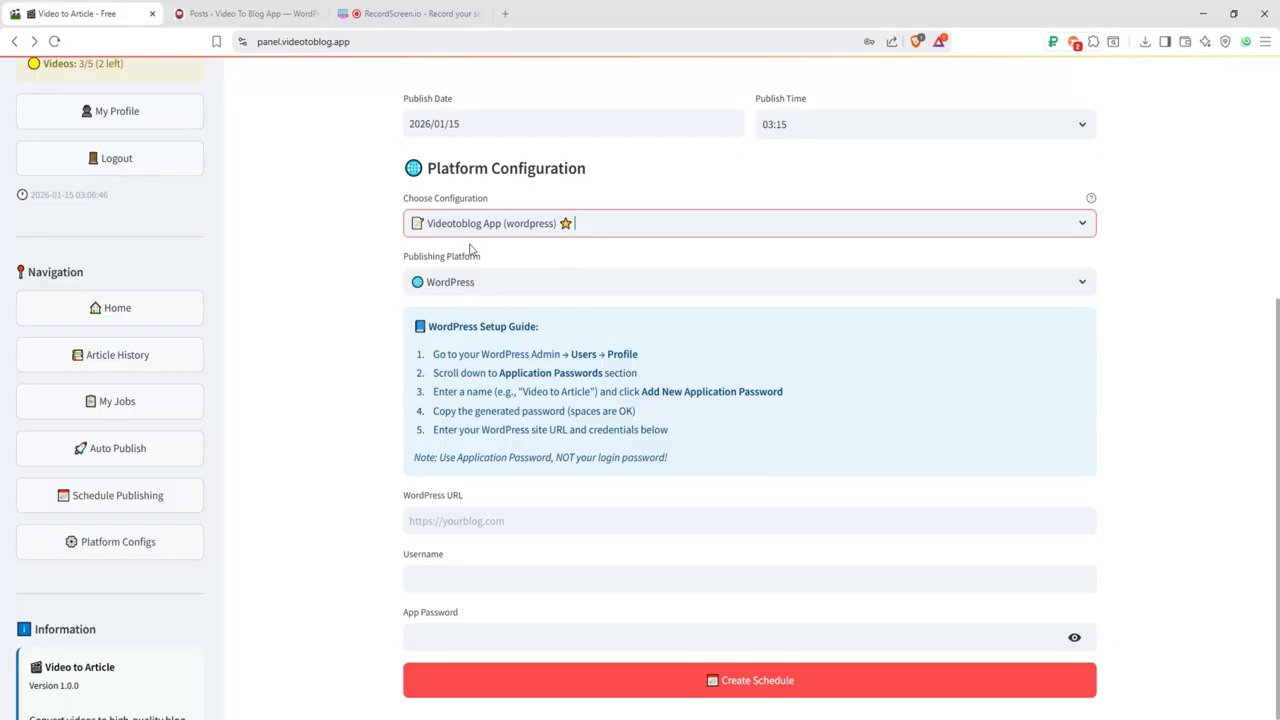
– Choose Platform Configuration: This is where you link your WordPress site.
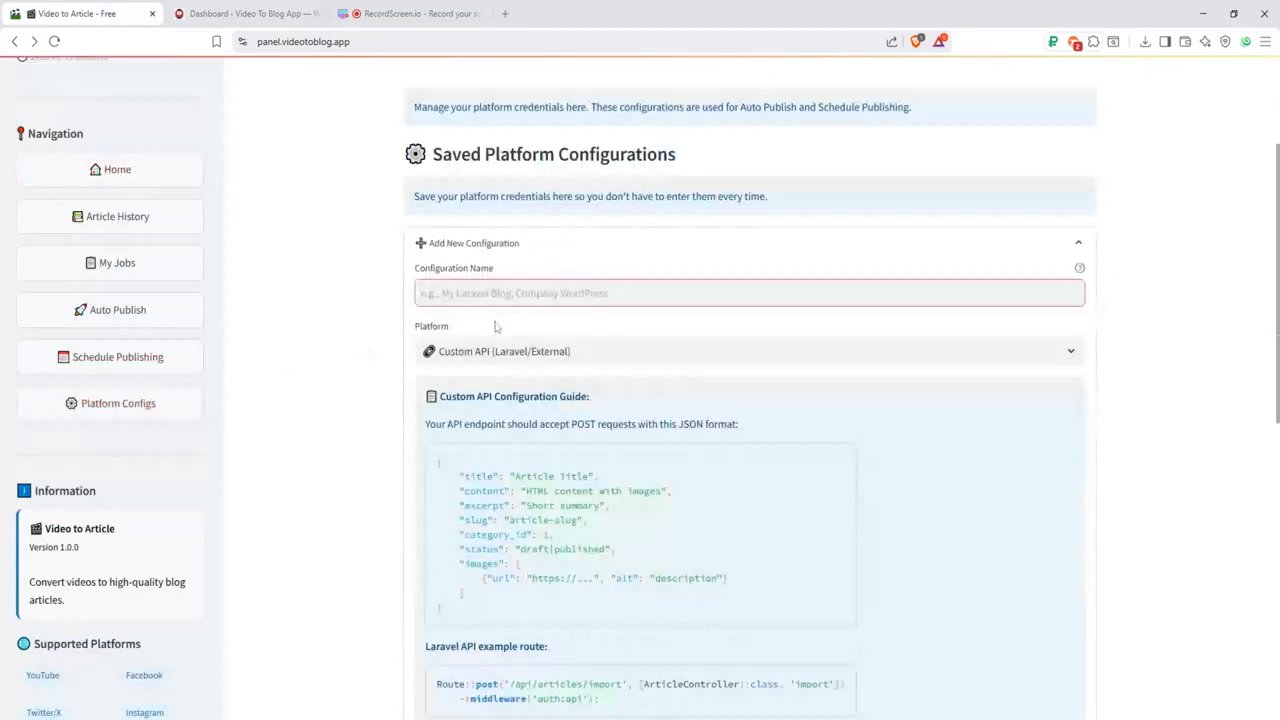
The platform configuration is a one-time setup. You’ll select WordPress as your publishing platform and then enter your site’s URL and the credentials—specifically, your WordPress username and the Application Password you generated earlier. Once saved (e.g., as “Videotoblog App Config”), this configuration can be reused for every future scheduled post, eliminating repetitive setup.
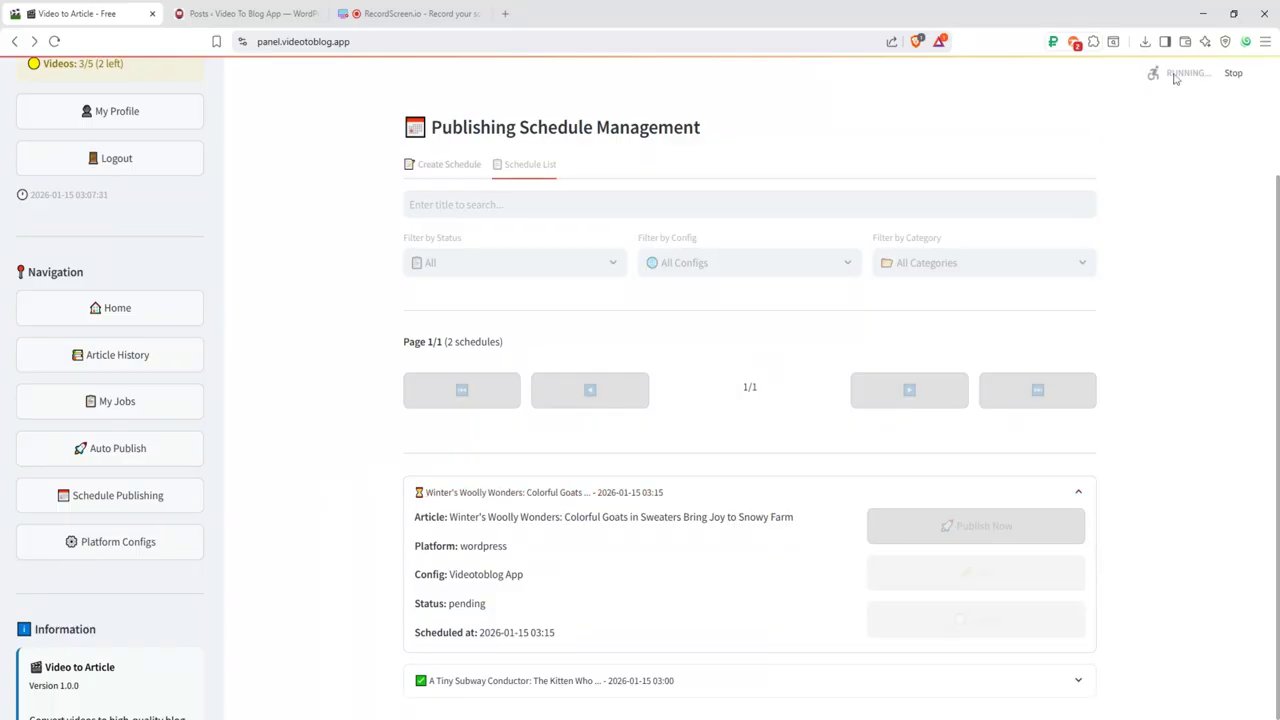
You can see the system in action with scheduled posts. For instance, an article titled “Winter’s Woolly Wonders: Colorful Goats in Sweaters…” might be queued for publication on a future date. Similarly, another article like “Khám Phá Bangkok: 10 Trải Nghiệm Tuyệt Vời Nhất…” could be scheduled for an early morning slot on a different day. During the final schedule creation, you can also assign the post to a specific category, such as “uncategorized” as a default, ensuring it fits into your site’s structure from the moment it goes live.
Key Benefits and Best Practices for Automated Posting
Implementing this system transforms your content strategy. The most significant benefit is massive time savings. The manual process of transcribing, editing, formatting, and publishing a video as a blog post is condensed into a few configuration clicks. This reclaimed time can be invested in creating more video content or other business activities.
Furthermore, it enables flawless consistency. By scheduling posts days, weeks, or even months in advance, you maintain a steady stream of content for your audience, which is crucial for SEO and audience retention. It also allows for strategic planning—scheduling posts to go live at optimal times for your audience, regardless of your own availability.
To ensure success, follow these best practices:
– Always Start with Drafts: Use the “draft” status initially. This gives you a mandatory review checkpoint to ensure the AI-generated article meets your quality standards, tone, and accuracy before it ever reaches your audience.
– Use Descriptive Application Names: When creating your WordPress application password, use a clear name like “VideotoBlog Automation.” This helps immensely if you ever need to review or revoke access in the future.
– Batch Your Scheduling: Dedicate time to convert several videos and schedule them all at once. This batch-processing approach is far more efficient than handling one piece of content at a time.
– Review Your Article History: Periodically check the Article History section in VideotoBlog.app to monitor the performance and accuracy of the conversions, making adjustments to your source videos or settings as needed.
Conclusion: Embracing Efficient Content Automation
Setting up auto-posting from VideotoBlog.app to WordPress is a straightforward process that unlocks a new level of efficiency for content creators. By securely connecting the two platforms via WordPress Application Passwords, configuring your default post settings, and leveraging the powerful scheduling tool, you can build a robust, self-sustaining content pipeline.
The process demystified in this guide—from the initial dashboard configuration to viewing scheduled posts—highlights a workflow where technology handles the repetitive tasks. This allows you, the creator, to focus on what you do best: generating great ideas and producing engaging video content. In an era where consistent, quality content is king, tools like these are not just conveniences; they are essential components of a scalable and sustainable digital strategy.